Configuring Facility Attributes
To Configure Facility Attributes
- Right-click in the Facility Service pane and click Configure Attributes….
- Click the Edit button to begin configuring attributes for the facility service.
- Click the In Use box to enable an attribute.
- Type in the Attribute Description up to 20 characters.
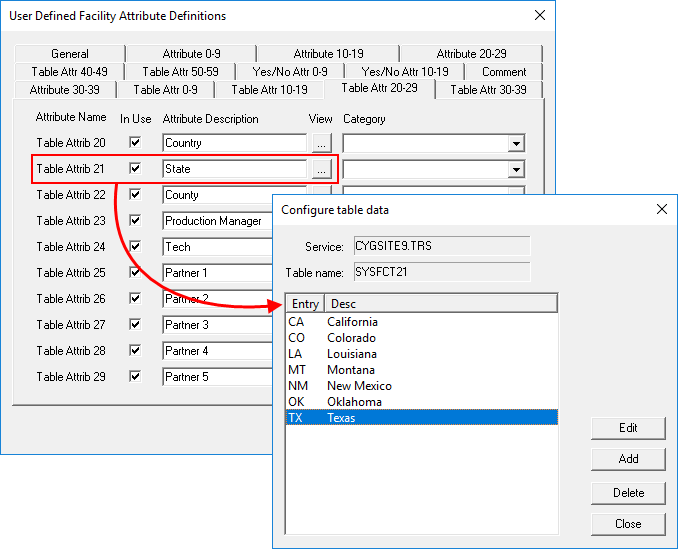
- For table-driven attributes 0-59 click the View browse button to create table-driven attribute entries. These entries appear in the drop-down menu for the specific attribute when assigning attributes to a single facility.
- To add a table entry click Configure.
- Click Add.
- Type an Entry for the table up to 10 characters long.
- Type a Description for the entry up to 40 characters long.
- Click OK.
- To remove an entry click to highlight it then click Delete.
- To edit an existing entry click to highlight it then click Edit.
- Repeat steps 5a-5e until all table entries have been added.
- When all table entries have been added for the attribute table, click Close.
- Click Close to exit the Select Table Entry dialog box.
- If desired type to enter a Category. This entry can be used later to filter attributes in the Properties of a facility.
- Repeat steps 3-5 until all the desired attributes have been defined.
- Click Cancel to save the attribute configuration.
|
| Defined Entries for Table Attributes |


